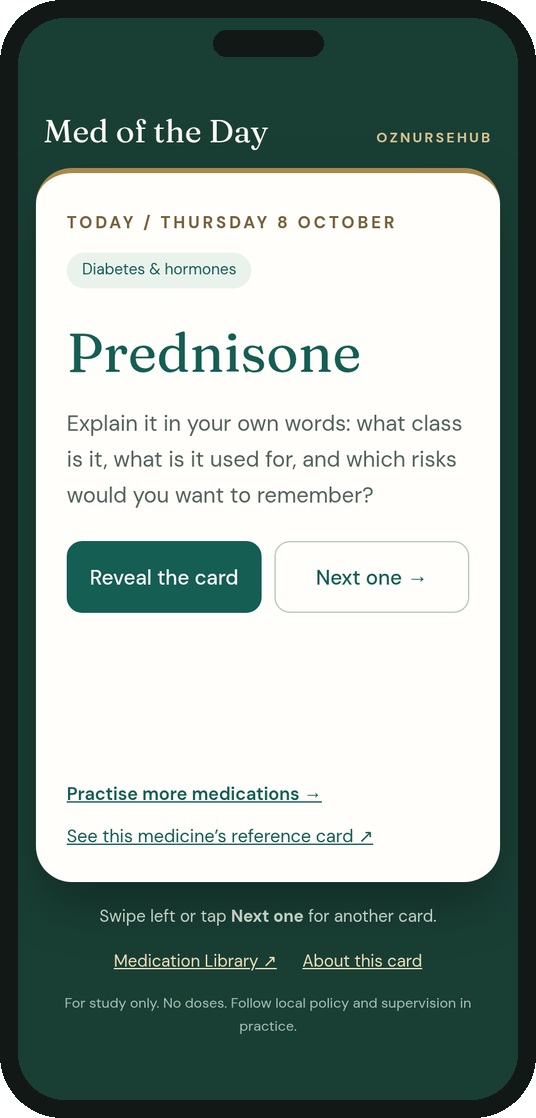
Each day there's a new Australian-named medicine to explain in your own words. Then reveal the card and see how close you were. Keep it on your phone's home screen so it's one tap away.
For study only. No doses. Follow local policy and supervision in practice.
How it works
Say it first. Then check.
Trying to recall before you look is what makes it stick.
01 / RECALL
Say what you know.
Look at today's medicine. Out loud or in your head, say its class, what it's used for and the risks you'd watch for.
02 / CHECK
Reveal the card.
See the drug class, selected uses and key risks. Notice what you missed and explain one point again in your own words.
03 / KEEP GOING
Want more?
Tap Next one → for extra cards, open the medicine's reference card, or practise more in the Learning Lab.
Add it to your phone
One tap from your home screen.
Add this page to your home screen and it opens like an app, straight to today's card.
You're already using the home-screen version. Nice! There's nothing more to set up.
What you'll get: a Med of Day icon on your home screen. Tap it and today's card opens full-screen in its own window, without the browser's address bar or the rest of this page. It's built to feel like a widget. Preview the card view
What it isn't: it's a home-screen shortcut to a web app, not a native home-screen widget or an app from the App Store or Google Play. It won't show the medicine on your home screen until you tap it, and it won't send reminders.
iPhone
Using Safari
Open this page in Safari.
Tap the More button (•••), then tap Share.On some Safari layouts and older versions of iOS, the Share button (a square with an arrow pointing up) is on the toolbar. Tap that instead.
Scroll down and tap Add to Home Screen.Can't see it? Scroll to the bottom, tap Edit Actions, then add Add to Home Screen.
Check Open as Web App is turned on, so it opens straight into the card view.You'll see this option on iOS 26 and later. If it's off, the icon opens this full page in Safari instead.
Tap Add. Look for the Med of Day icon on your Home Screen.
The card view you get when you open it from your home screen. This is a preview of our page, not a picture of your phone's home screen.
Menus vary a little between phones and versions. Using another browser? Look for Add to Home screen or Install in its menu. To remove the icon later, touch and hold it, then choose the option to remove or uninstall it.
Questions
Good to know.
Does it cost anything?
No. Medication of the Day is free, like everything on OzNurseHub, and you don't need an account. Adding it to your home screen is free too. Nothing is downloaded from an app store.
Does it work offline?
Yes, once you've opened it with an internet connection. Your phone keeps a copy of this page and the medicine list. Today's medicine is worked out on your phone from the date, so it still changes each day when you're offline.
If you've added it to an iPhone Home Screen, open it from the icon once while you're online so that version saves its own copy. Offline, the fonts may look a little different. Other OzNurseHub pages will only work if your phone has already saved them.
How much data does it use?
The page itself is small: about 140 KB, including the 100-medicine list, styles and fonts. The first time you visit OzNurseHub, your browser also saves the site's main pages and images for offline use, which adds about 4 to 5 MB in the background. After that, your phone reuses its saved copy and only checks for updates, so daily visits use very little data. Opening it on Wi-Fi the first time is a good idea if your data is limited.
Does it collect any information about me?
This page doesn't need an account, doesn't use cookies or analytics, and the card doesn't save your answers. Your browser keeps an offline copy of the site's files on your phone. The page's fonts come from Google Fonts, so your browser makes a standard request to Google when it loads them.
Is it a real home-screen widget?
Not quite. Apple and Google widgets have to come from an app installed from their app stores, and OzNurseHub is a website. What you get is the closest thing a website can offer: an icon that opens straight into a full-screen card, without the browser around it. It doesn't show the medicine on your home screen until you tap the icon.
Will it remind me to study?
No. It doesn't send notifications. Making it part of a routine helps, for example opening it on the bus or before a shift.
Why does everyone get the same medicine? When does it change?
Everyone sees the same medicine each day, so you can quiz a friend or your study group. It changes at midnight Adelaide time (Australia/Adelaide). Over time it works through all 100 medicines. Next one → gives you extra cards, and today's card comes back the next time you open the page.
Does it tell me doses?
No. The cards cover drug classes, selected uses and key risks for study only. Always use current local policies, medicine information and supervision in practice.